Lab 12 - Simultaneous Localization and Mapping (SLAM)
Simultaneous Localization and Mapping (SLAM)

1. Activity Identity
| Activity title | Introduction to Robotics |
|---|---|
| Topic | Robotics / ROS 2 / SLAM |
| Authors | Institute of Robotics and Machine Intelligence Dominik Belter, Jakub Chudzinski, Marcin Czajka, Kamil Młodzikowski |
| Target learners | Bachelor (Computer Science / IT, Robotics) |
| Estimated duration | 2 hours |
| Difficulty level | Intermediate |
| FOSSBot environment | Hybrid (Simulator and physical FOSSBot) |
| Licence | CC BY 4.0 |
2. Learning Objectives and Competences
| ID | Learning outcome | Related competences | Assessment evidence |
|---|---|---|---|
| LO1 | Students will be able to explain what SLAM is and how a 2D occupancy
grid represents free, occupied and unknown space, and identify the roles
of /scan, /odom and the
map -> odom -> base_footprint frames. |
Robotics middleware knowledge; spatial reasoning about sensors and coordinate frames. | Answers to the analysis questions. |
| LO2 | Students will be able to build a 2D map of a simulated world with
slam_toolbox while driving the robot, watch it form in
RViz, and save it with nav2_map_server as a
.pgm image and a .yaml file. |
Tool selection for a robot; collecting and interpreting sensor data. | RViz screenshot of the map plus the saved .pgm and
.yaml (Submission
items 1 and 2). |
| LO3 | Students will be able to repeat the mapping workflow on a real FOSSBot over the lab network and produce a map of the physical room. | Operating real hardware safely; transferring a method from simulation to reality. | Photo of the robot and the map of the real room (Submission item 3). |
3. Prerequisites
Labs 05 and 06 completed: you can build and start the FOSSBotEduSim container, launch the simulator, list and inspect topics, and drive the robot with
teleop_twist_keyboard.Familiarity with the
/scan(lidar) and/odom(odometry) topics from Lab 05.For the final step only: access to the lab Wi-Fi network and a physical FOSSBot, provided and powered on by your instructor.
Ability to capture evidence: screenshots, photos and the saved map files.
4. Required Material and Setup
| Category | Item | Version / Quantity | Notes |
|---|---|---|---|
| Hardware | Workstation | 1 per student | The same Docker-capable Linux PC used in Labs 05 and 06. |
| Software | FOSSBotEduSim simulator | latest from main branch |
The ros2_fossbot_edu Docker image from Lab 05. It
already includes slam_toolbox and nav2, so
nothing extra to install. |
| Hardware | Physical FOSSBot | 1 per group (final step only) | Instructor-provided and powered on. It exposes the same topics as
the simulator (/cmd_vel, /odom,
/scan). |
| Hardware | Lab Wi-Fi router / AP | 1 per room (final step only) | Instructor-provided. See Connecting to real robot. |
Tip: All of the simulation steps (1 to 5) work without the physical robot. If hardware is not available, complete those and read through Step 6.
5. Safety, Ethics and Accessibility Notes
The simulation steps carry over the operational notes from Labs 05 and 06:
start_container.shruns the container with reduced isolation (--network=host, GPU and X-server access) so the GUIs and networking work. Use it only with the FOSSBotEduSim image you built yourself, and runxhost -local:rootafterwards on shared machines.Gazebo, RViz and
slam_toolboxtogether are demanding. On a machine with integrated graphics, close other GPU applications before you start.
Step 6 commands real hardware while you drive it around a room, so it adds physical safety. The connection and safety procedure for the robot is in Connecting to real robot: clear the floor, drive slowly, and know the stop command before you move.
6. Scenario and Problem Statement
A robot placed in an unknown room has to answer two questions at the same time: “what does the room look like?” (mapping) and “where am I within it?” (localization). The two are coupled, because to add a new wall to the map you need to know where you are, but to know where you are you need a map to compare against. Solving them together is called Simultaneous Localization and Mapping, or SLAM.
In this lab you will give the FOSSBot exactly the two inputs a SLAM
system needs, its lidar (/scan) and its odometry
(/odom), and let slam_toolbox build a 2D map
while you drive. You will do it first in simulation, then on a real
robot in a real room.
7. Lab Workflow
| Phase | Student action | Expected output | Time |
|---|---|---|---|
| 1. Prepare | Start the container and launch the simulator | Gazebo + RViz running | 10 min |
| 2. Concepts | Read through maps, occupancy grids and frames | Vocabulary to read what SLAM produces | 15 min |
| 3. Start SLAM | Launch slam_toolbox, switch the RViz Fixed Frame to
map |
A partial map appears in RViz | 15 min |
| 4. Drive and map | Drive with teleop and watch the occupancy grid grow | A complete map of the world in RViz | 30 min |
| 5. Save the map | Save the map with map_saver_cli and inspect the
files |
A .pgm image and a .yaml file |
15 min |
| 6. Real robot | Connect to a real FOSSBot and map a real room | A map of the physical environment | 30 min |
| 7. Reflect | Answer the analysis questions | Short written analysis | 5 min |
8. Step-by-Step Instructions
Before you start. Capture evidence as you go. The full list of artifacts is in Section 10. Relevant tasks are marked with a Capture for submission note.
Step 1 - Environment preparation
- Start the container from the
FOSSBotEduSimdirectory on your workstation (usestart_container_no_gpus.shif your machine has no NVIDIA GPU):
bash start_container.sh- Launch the simulator. Use the
simple_shapesworld: its scattered shapes give the lidar plenty of structure to map (thesingle_wallworld also works if you prefer a single large feature):
ros2 launch fossbot_educational_description single.launch.py world:=simple_shapes.sdfGazebo and RViz both open. Leave them running.
- Open more terminals as you need them with
docker exec -it ros2_fossbot_edu bash(run on the host). Every such shell already has ROS 2 and the workspace sourced.
Expected result: Gazebo and RViz are running, and
ros2 topic list shows /scan and
/odom.
Step 2 - SLAM concepts
This section is reference material. Skim it now and come back to it while the map is forming in Step 4.
What a map is here
The map you will build is a 2D occupancy grid: the floor is divided into small square cells, and each cell holds one of three states:
- free (the robot’s lidar has seen through it; drawn white),
- occupied (the lidar has hit something there; drawn black),
- unknown (never observed; drawn grey).
The size of each cell is the map’s resolution, in metres per cell. A common value is 0.05 m (5 cm) per cell.
Localization and the SLAM problem
Localization is knowing the robot’s pose (position and
orientation) inside the map. SLAM does mapping and localization
together: as the robot moves, slam_toolbox compares each
new lidar sweep (/scan) against the part of the map it has
already built and slides it into place, correcting the rough guess that
odometry (/odom) provides. Odometry alone drifts over time
(wheels slip, small errors accumulate), so matching the scans is what
keeps the map consistent.
Loop closure
When the robot returns to a place it mapped earlier, SLAM can recognise it and snap the two observations together, correcting all the drift that built up in between. This is called loop closure, and it is why driving a full loop produces a much cleaner map than driving in a straight line forever.
Frames
SLAM introduces a map coordinate frame. The full chain
is map -> odom -> base_footprint:
odom -> base_footprint is the drifting odometry
estimate, and slam_toolbox publishes the
map -> odom correction that cancels the drift. In RViz
you will set the Fixed Frame to map so the
world stays still while the robot moves through it.
Inputs, output and the tool
slam_toolbox subscribes to /scan and
/odom and publishes the map on /map. In
simulation you must tell it to use simulated time
(use_sim_time:=true) so its clock matches Gazebo’s
/clock; on a real robot you use wall-clock time
instead.
Step 3 - Start the SLAM node
- In a new terminal (sourced automatically), start
slam_toolboxin online asynchronous mode, using simulated time:
ros2 launch slam_toolbox online_async_launch.py use_sim_time:=true- Switch RViz to the map frame. In the RViz
Displays panel on the left, open Global
Options and change Fixed Frame from
odomtomap. The Map display (already part of the FOSSBot RViz configuration) starts drawing the occupancy grid around the robot.
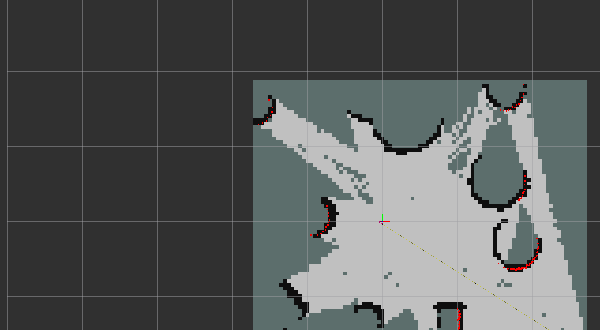
The 2D occupancy grid as it appears in RViz: white is free space, black is occupied, the dark grey is still unknown, and the red points are the live lidar scan. The curved black outlines are the surfaces of the shapes in the world.
Tip: Confirm the map is really being published with
ros2 topic hz /mapin another terminal. You should see a low, steady rate (around 1 Hz).
Task 3.1
Confirm the map frame now exists. Echo one map message
and read its header:
ros2 topic echo /map --once --field headerThe frame_id should be map.
Expected result: slam_toolbox is
running, RViz shows a small occupancy grid around the robot with the
Fixed Frame set to map, and /map is being
published.
Step 4 - Drive to build the map
- In another terminal, start the keyboard teleoperator:
ros2 run teleop_twist_keyboard teleop_twist_keyboard- Drive the robot slowly around the whole world, watching the occupancy grid fill in inside RViz. As the lidar sweeps new areas, grey turns into white (free) and black (obstacles).
Tip: Drive slowly and make gentle turns. Fast spinning blurs the scans and produces a smeared map. Cover the whole area, and drive back through places you have already mapped: revisiting a known area lets
slam_toolboxperform a loop closure and tidy up the accumulated drift.
Task 4.1
Keep driving until the obstacles in the world show up as closed outlines and the free space between them is filled in. Try to map the entire reachable area.
Expected result: RViz shows a recognisable map of the world: the shapes appear as black outlines surrounded by white free space, with little grey left inside the area you drove through.
Capture for submission: screenshot the RViz window showing your completed map.
Step 5 - Save the map
With the map complete, save it to disk. The map server writes two
files: a .pgm greyscale image of the occupancy grid and a
.yaml file with its metadata.
- Save the map into the workspace that is shared with your host, so it survives after you close the container:
ros2 run nav2_map_server map_saver_cli -f /fossbot_ros2/ws_fossbot/my_mapThis creates my_map.pgm and
my_map.yaml.
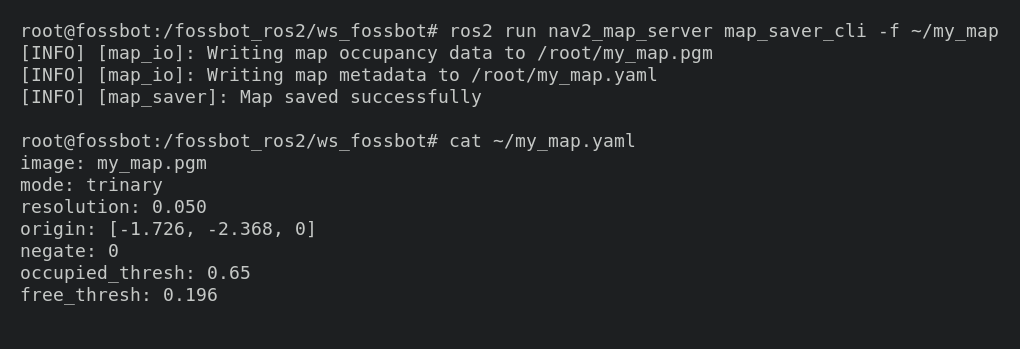
Warning: If you save the map somewhere outside
/fossbot_ros2/ws_fossbot(for example in the home directory~), it lives only inside the container and is lost the moment you exit, becausestart_container.shruns with--rm. Thews_fossbotdirectory is bind-mounted from the host, so files saved there stay on your machine.
- Open the
.yamlfile and read its fields:
cat /fossbot_ros2/ws_fossbot/my_map.yamlresolution is the size of one cell in metres,
origin is where the bottom-left corner of the image sits in
the map frame, and occupied_thresh /
free_thresh are the cut-offs used to classify cells.
- View the
.pgmimage. It is an ordinary greyscale image: white is free space, black is occupied, grey is unknown.
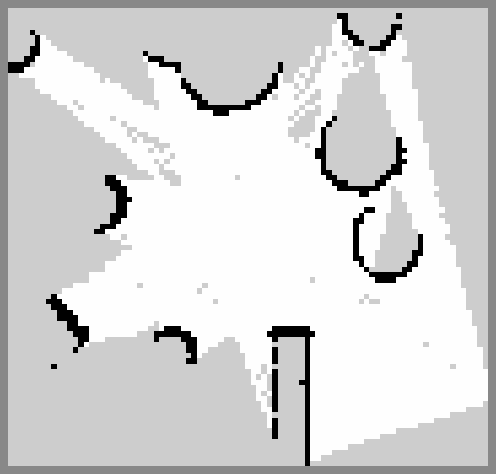
The saved my_map.pgm. The black arcs are the
obstacles the lidar detected; white is the free space the robot drove
through; grey is everything still unobserved.
Task 5.1
Report the map’s resolution (from the .yaml) and the
image size in pixels (the first numbers in the .pgm, or
from any image viewer). Using the resolution, work out roughly how many
metres across your mapped area is.
Expected result: You have my_map.pgm
and my_map.yaml on your host machine, and you can explain
what the resolution and origin mean.
Capture for submission: the saved
.pgmmap and the contents of the.yamlfile.
Step 6 - Map a real FOSSBot
The only thing that changes for a real robot is where the lidar and odometry come from. The SLAM commands are the same.
Connect to the robot by following Connecting to real robot, then come back here. Do not launch the simulator.
Start SLAM using wall-clock time. Because the data now comes from real hardware rather than Gazebo, use
use_sim_time:=false:
ros2 launch slam_toolbox online_async_launch.py use_sim_time:=falseOpen RViz and, as in Step 3, set the Fixed Frame to
map.Drive the robot slowly around a cleared real area with
teleop_twist_keyboard, exactly as in Step 4, and watch the map of the real room form.
Warning: Clear the space around the robot before you move it, keep the speed low, and keep the stop command ready (see Connecting to real robot).
Task 6.1
Map a real space (for example a corner of the lab marked out with boxes), then save it with the same command as in Step 5, under a different name:
ros2 run nav2_map_server map_saver_cli -f /fossbot_ros2/ws_fossbot/real_mapExpected result: A map of the real room appears in
RViz and is saved as real_map.pgm and
real_map.yaml.
Capture for submission: a photo of the FOSSBot in the space you mapped, and the saved map of that space.
9. Analysis Questions
Your
.yamlfile lists aresolution. What would you gain and what would you pay (file size, computation, sensitivity to noise) if you halved it to make the cells smaller?Odometry (
/odom) on its own drifts over a long drive, yet your map stayed roughly correct. How does matching successive/scansweeps against the existing map compensate for that drift?What is loop closure, and what did you observe happen to the map when you drove back through an area you had already mapped in Step 4?
Compare the simulated map from Step 5 with the real one from Step 6. Which was noisier or harder to close into a clean map, and what real-world effects (lidar noise, wheel slip, people moving through the room) explain the difference?
10. Submission Requirements
A screenshot of RViz showing your completed map of the simulated world, from Step 4.
The saved simulated map: the
.pgmimage and the contents of the.yamlfile, from Step 5.A photo of the real FOSSBot in the space you mapped, together with the map you built of that space, from Task 6.1.
Short answers (2 to 3 sentences each) to the four analysis questions.
11. References and Open Licence
- TurtleBot3 SLAM in simulation: https://emanual.robotis.com/docs/en/platform/turtlebot3/slam_simulation/
- TurtleBot3 SLAM on a real robot: https://emanual.robotis.com/docs/en/platform/turtlebot3/slam/
slam_toolbox(the package used in this lab): https://github.com/SteveMacenski/slam_toolboxnav2_map_serverand the map format: https://docs.nav2.org/configuration/packages/configuring-map-server.html- About
ROS_DOMAIN_ID: https://docs.ros.org/en/jazzy/Concepts/About-Domain-ID.html - FOSSBotEduSim repository: https://github.com/LRMPUT/FOSSBotEduSim
- Loosely based on the SLAM 2D and AMCL lab in the
lab-armcourse, Poznan University of Technology, Institute of Robotics and Machine Intelligence.
The Creative Commons Attribution 4.0 International (CC BY 4.0) license allows users to share, copy, distribute, and adapt the work, even for commercial purposes, as long as proper credit is given to the original creator.
EU funding disclaimer
Funded by the European Union. Views and opinions expressed are however those of the author(s) only and do not necessarily reflect those of the European Union or the European Education and Culture Executive Agency (EACEA). Neither the European Union nor EACEA can be held responsible for them.